
This page shows you around Gigplay: its first launch, the home screen, the songs it comes with, and what to do once a song is open.
The first launch
Gigplay opens with its logo, then asks, once, how you like chords written: With symbols (C−7, CΔ, Cø) or With letters (Cm7, Cmaj7, Cm7♭5). Tap one. You can change it in Settings, Chords (Making it yours).
The home screen
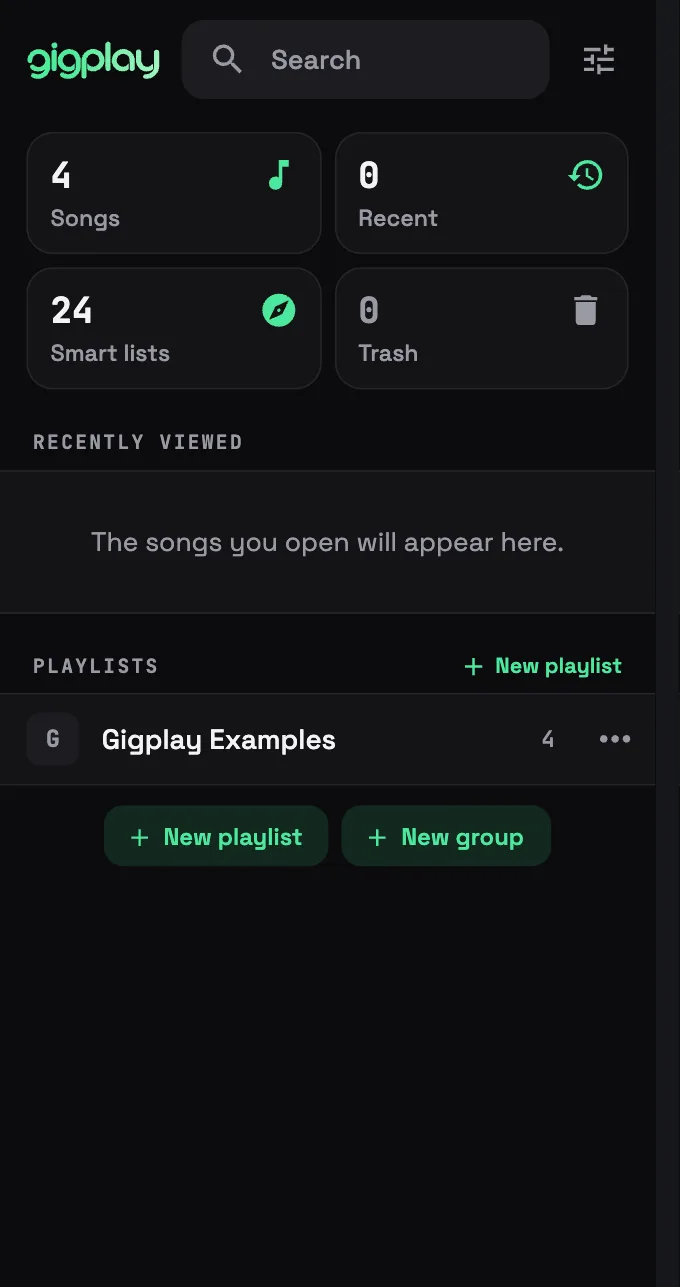
After that, Gigplay opens on its home screen. At the top are Search, which finds a song by its title, composer, style or tags, and the Settings button.
- Songs holds every song you have.
- Recent holds the songs you opened lately. The latest also show under Recently viewed.
- Smart lists groups your songs for you: by style, composer or chord progression, those with a melody, and more.
- Trash keeps the songs you delete.
- Playlists are your own lists. New playlist and New group make more (Playlists and library).
The example songs
The app comes with a playlist, Gigplay Examples, of four songs written for Gigplay: Grey Avenue, a medium swing in G minor; Harbour Morning, a ballad in C; Blues in F; and Example Tune, a bossa nova with repeats, endings, a segno and a coda. Grey Avenue and Harbour Morning have a melody too. Try things out on them, then bring in yours (Importing songs).
Opening a song
Tap a playlist, then a song. The song fills the screen.
The first song you open shows its tips, a gesture at a time: tap for the menu, swipe up or down to change mode, sideways to change song. Next goes on, Skip ends them. To see them again: Settings, General, Show the tips again.
Tap the song to open its menu: a bar at the top and pads at the bottom. Tap the song again to close it. The pads:
- Key: play the song in another key (Changing key).
- Zoom out and Zoom in: make the song smaller or bigger.
- Light / dark: a light or a dark page.
- Chords as: chords as letters, Do Re Mi, degrees or Nashville numbers.
- Lyrics under the chart: each measure's words under its chords.
- Simple chords: each chord as the basic one of its family.
- Player: the band that plays the song with you (The band).
- Scroll: the song scrolls instead of fitting the screen.
- Full width: the chart across the whole screen.
- Display: more settings for how the song looks.
- Edit: change the chords (Editing charts).
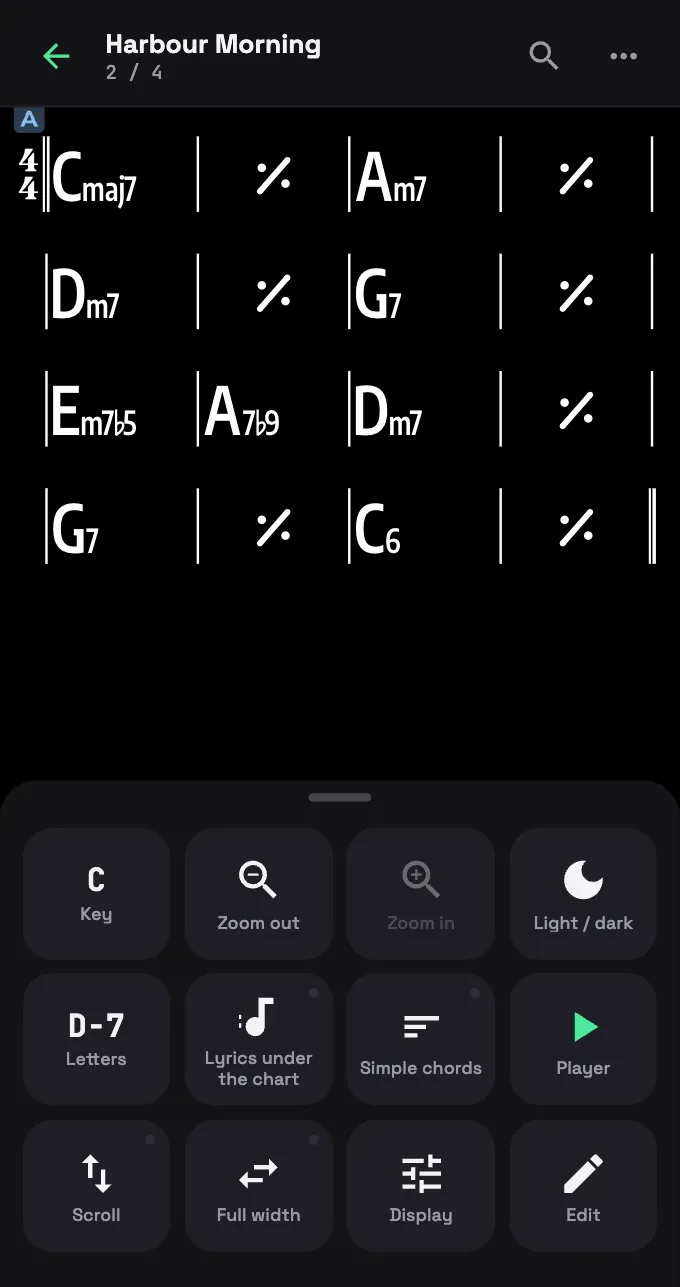
The ⋯ button at the top right has more, such as Mode, Add to favourites, Add to playlist…, Files…, Song info, Export and Delete song.
Going back
With the menu open, tap the arrow at the top left. You go back to the list you opened the song from.
Moving through a playlist
Swipe left for the next song and right for the one before. The song stays in the same mode, and the swipes stop at the first and the last song.
To jump further, open the menu and tap the song's place under its title (2 / 4). The playlist's songs are listed: tap one.
A song opened from Songs swipes through all your songs the same way.
Next
- Reading a song: the modes, zoom, and how the chart looks.
- Changing key: the song in the key you play it in.
- The band: playing along.