Settings decide how Gigplay looks and how your charts are written. To open them, tap Settings at the top of the home screen. Each line opens a page; a change takes effect at once, and the back arrow brings you out.
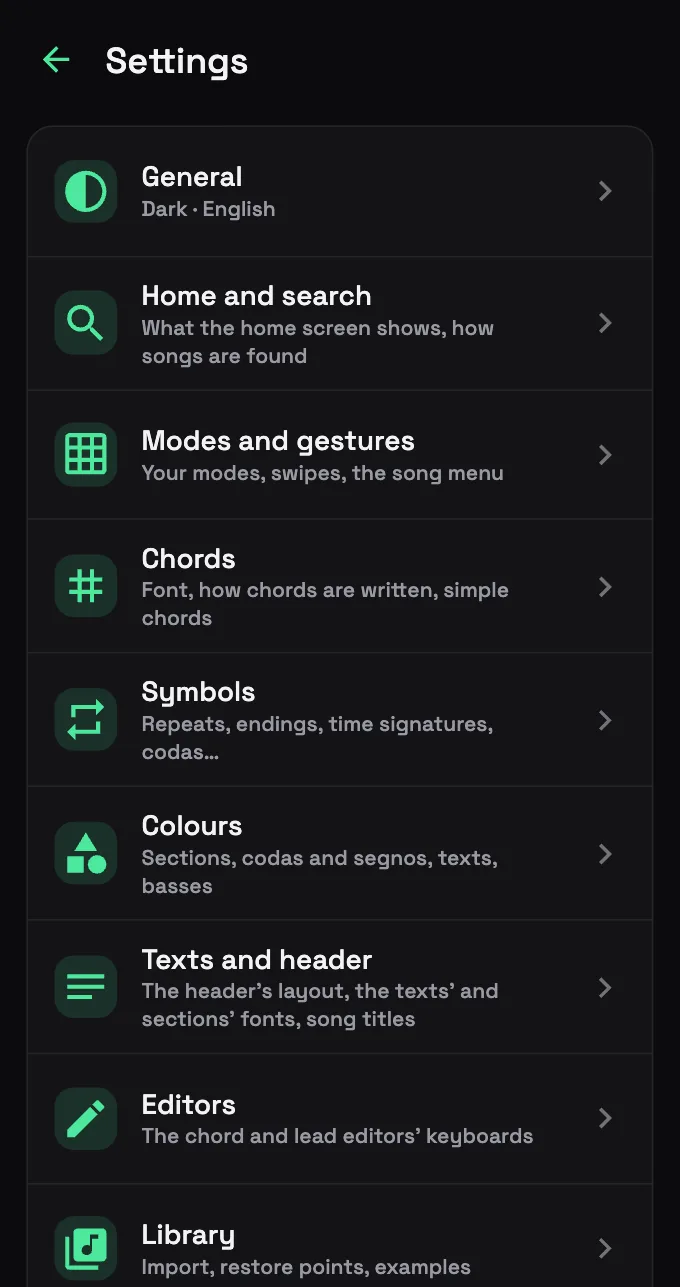
General
Under Appearance, choose System (light or dark as your phone is set), Light or Dark. Dark is easiest on the eyes on a dim stage. Accent colour sets the app's own colour, green at first; More shows every choice.
Language is your phone's at first (Phone language); pick another to use Gigplay in it. Reduce motion cuts animations, and Vibrate on touch gives a light tick on the editors' keys, among others. Show the tips again shows a song's tips (its gestures) the next time you open one.
Home and search
Show or hide Favourites and Recently viewed on the home screen. Under Search in, choose what a search looks through: Title, Composer (with the lyricist and performer), Style (with the tags), Lyrics. With Search in other languages, "night" also finds "Noche" or "Nacht".
Modes and gestures
A mode is a way of showing a song (chords, score, lyrics, or two side by side). Here you tick the modes that show on songs, drag them into the order you swipe through them, and tap one to set it up, make it the default or duplicate it. Add mode makes your own. Skip modes with nothing to show passes over, say, the lyrics of a song that has none. More in Reading a song.
Chords
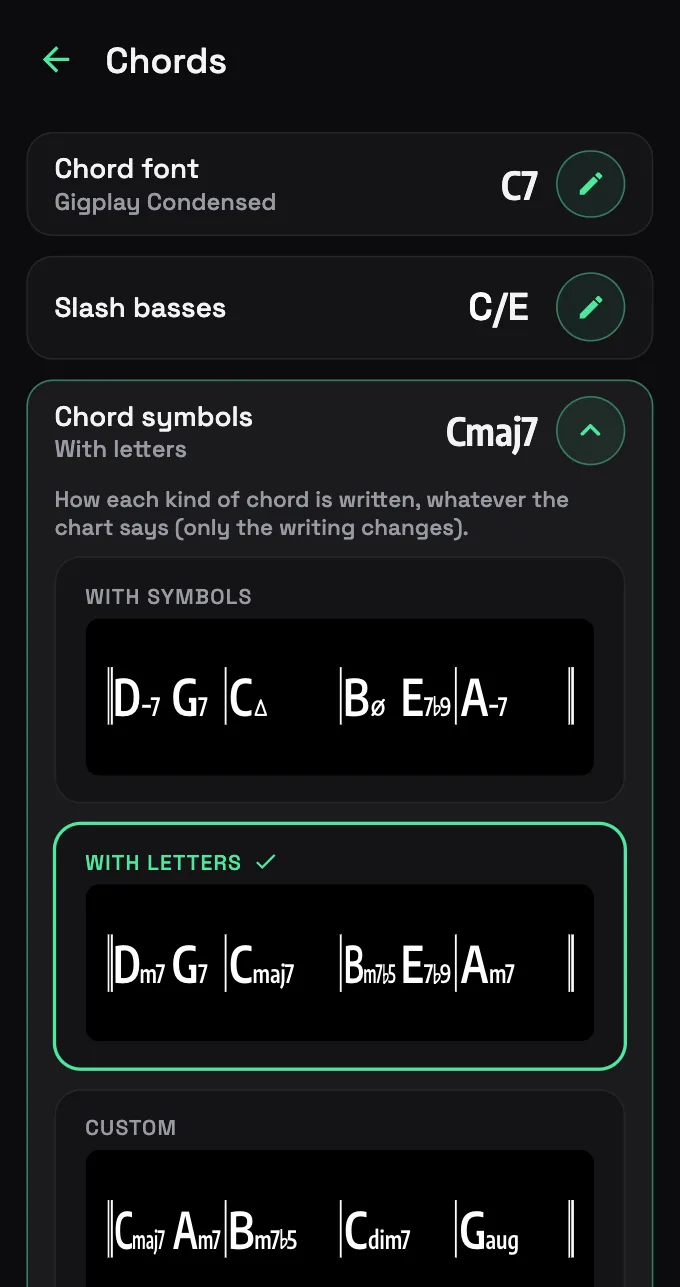
Chord font and Slash basses change how chords are drawn. Chord symbols chooses how chords are written: tap it, then With symbols (C−7, CΔ, Cø) or With letters (Cm7, Cmaj7, Cm7♭5). Custom keeps how each kind is written now and lists each kind's choices under them: a Major seventh as CΔ, Cmaj7, CM7 or Cma7, a Minor as C−, Cm, Cmin or Cmi, and so on, or As written in the chart. Only the writing changes, never the chord.
Under it, F♭, C♭, E♯ and B♯ as written: off, they are shown as E, B, F and C where the key does not use them.
Under Simple chords, choose the forms kept: modes with simple chords on show each chord as the nearest of them.
Symbols
How repeats, measure repeats, time signatures, endings, repeat counts, directions such as D.S., codas and segnos are drawn.
Colours
A colour for each part of the chart: Section colours, Texts, Chords, Barlines, endings, time signatures and more.
Texts and header
Header style sets the layout of the chart's header, where the title is. Text font and Section font change the chart's words and section marks. Title Case shows titles with their main words in capitals; they are kept and shared as you wrote them.
A mode can have its own chord font, symbols and colours; where it has none, it uses these pages'.
Editors
Choose the keyboard of the chord editor and of the lead editor: Default, Plain or Launchpad. See Editing charts and Melody and lyrics.
Library
Importing, versions, Paper size for PDFs, backups and Restore points: see Bringing in your songs and Sharing, exporting and backups.
About
The licences of the fonts, icons, sounds and code Gigplay is made with.