Gigplay has a band that plays any chart with you: piano or guitar, bass and drums, in the song's style. This page shows how to start it, change what it plays and save it as a file.
Playing a song
- Open a song and tap the middle of the chart. Its menu opens.
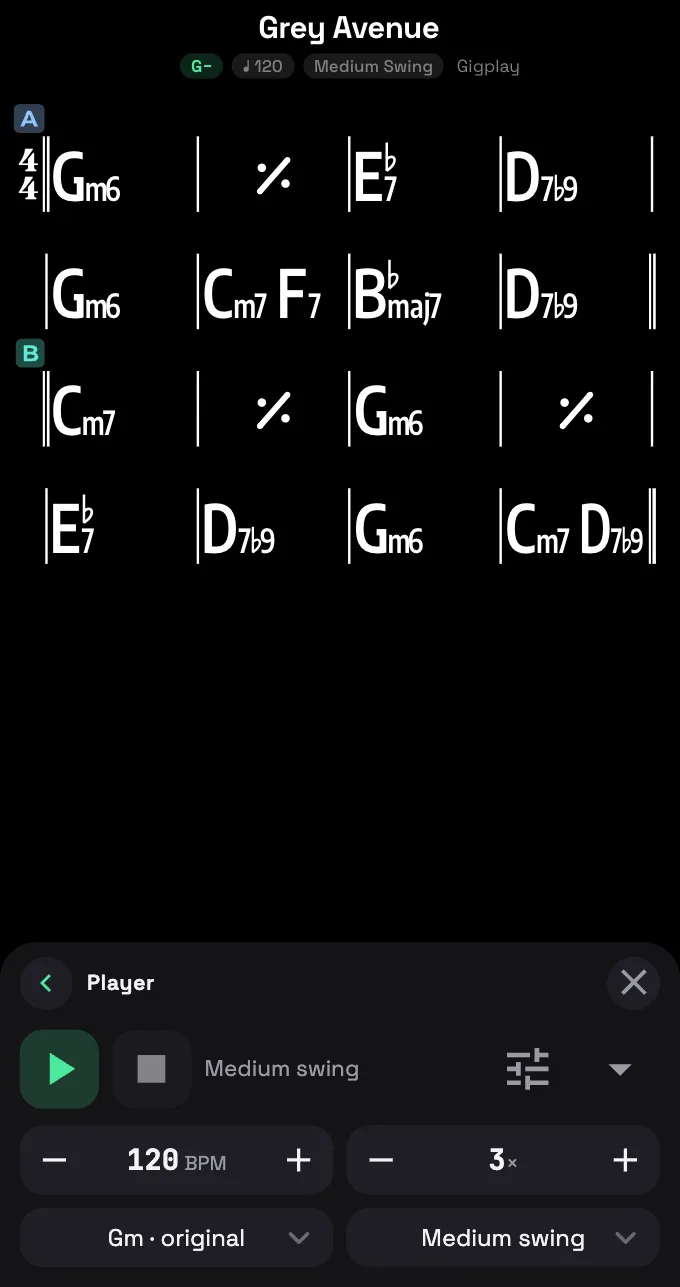
- Tap Player. The player opens over the bottom of the chart.
- Tap Play. After a count-in the band starts, and the measure it plays is lit.
The player shows the chord, the measure and which time through the song it is. Pause pauses, Stop goes back to the start. To play from another measure, hold your finger on it in the chart.
Tempo, repeats, key and style
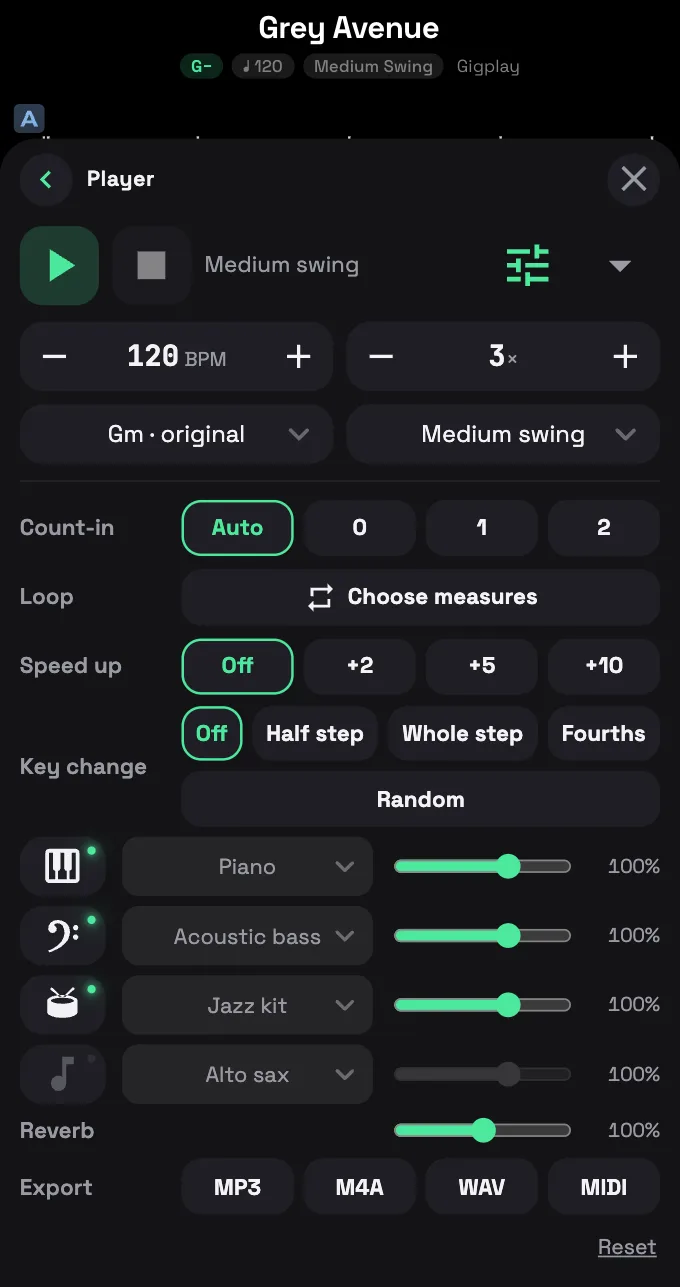
- Tempo: the minus and plus beside the BPM change it by 5, even while the band plays.
- Repeats: the other minus and plus set how many times the band plays the form, from 1 to 20.
- Key: the list under the tempo. The chart and the band move to the key you choose (Transposing).
- Style: the list beside it. Its first line is the song's own style; then come the band's styles, from swing and bossa nova to tango and funk.
In a playlist, the tempo, repeats and style you set are remembered for that song in that playlist only.
More options
Tap More options (the sliders button):
- Count-in: Auto counts one measure in, two above 140 BPM; or choose 0, 1 or 2.
- Loop: tap Choose measures, then the first and last measure of a passage on the chart; the band plays it over and over. Tap it again to end the loop. If the options cover the chart, fold them with Fewer options.
- Speed up: the tempo rises by 2, 5 or 10 BPM each time through.
- Key change: each time through in another key, a half step, a whole step or a fourth up, or at random.
- The instruments: tap one's button to hear it or not, choose its sound in its list (an electric piano, a guitar, brushes…) and set its volume. Lead plays the song's melody when it has one; it starts silent.
- Reverb, and Reset to put it all back as the style has it.
Saving what it plays
At the bottom of the options, Export offers MP3, M4A, WAV and MIDI: the whole song with your tempo, instruments and mix, a MIDI file with each instrument on its own track. Your phone's share sheet opens, to save the file or send it. The song's ⋯ menu (More) has the same files under Export, Audio.
The compact player and the screen off
- Compact player (the arrow beside the sliders) folds the player into one thin row; Whole player opens it again.
- Tap the chart while the band plays: the player steps aside and the band plays on. Tap again to bring it back.
- Back (the arrow at the top) goes to the song's menu, still playing. Close stops the band.
- On Android the band keeps playing with the screen off or another app in front, with a notification naming the song.
On Android 13 and later, the first time the band plays, Gigplay says why it would show that notification. Continue, and Android asks whether to allow it; Not now, and you are not asked again. The band plays either way.