Gigplay can show any song in any key. The chords are spelled for the new key, and the melody and the band move with them. This page shows you how.
The Key pad
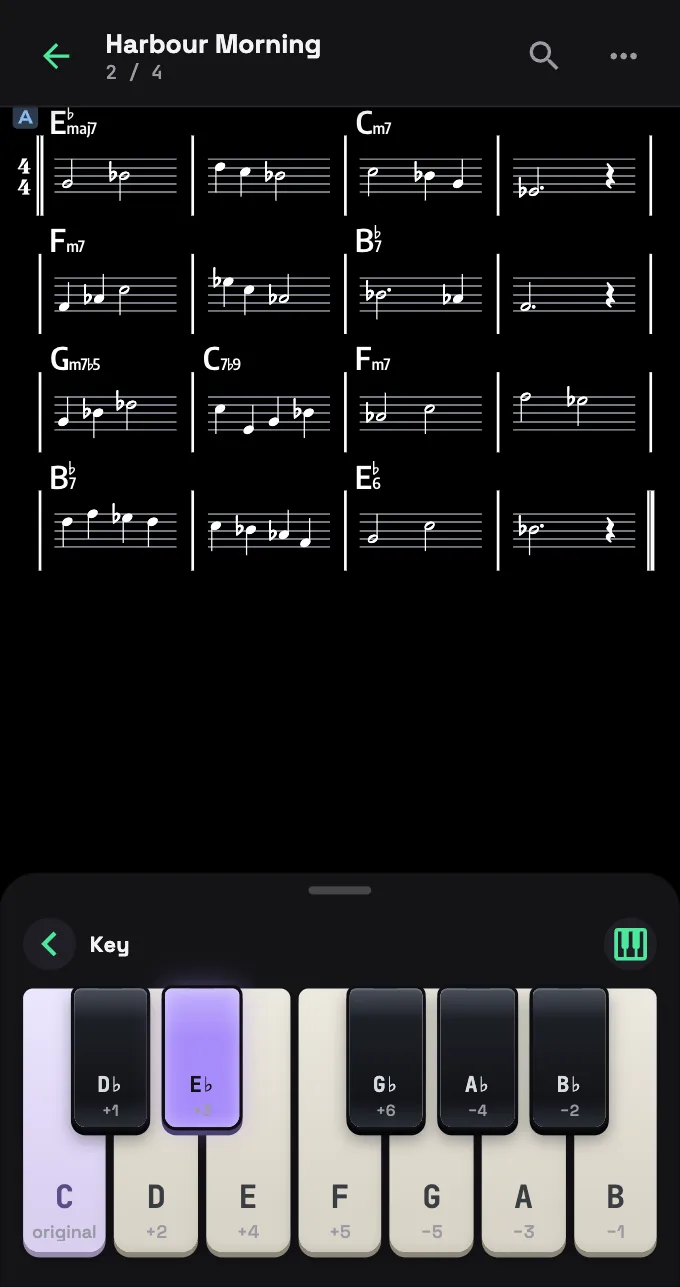
Open the song's menu. The first pad, Key, shows the key the song is in now: C, or Gm for G minor.
Tap it. The Key page opens with a piano of the twelve keys. Each one shows how far it is from the song's key, in half steps (+2, −3); the song's own key is marked original.
Tap a key. The song changes at once, and the key you chose is lit. For a song in a minor key, the keys are the minor ones (A minor, B♭ minor…).
The round button at the end of the page's title shows the keys another way: round the circle of fifths, then in a grid, then as a piano again. Gigplay keeps the way you chose.
The round arrow at the start of the title takes you back to the menu. The Key pad now shows the new key, with how far it is under it (+2).
What follows the key
- The chart: every chord, written in the new key.
- The melody, in Chords+Melody and Score: the notes move, and the score's key signature changes.
- Chords as: degrees and Nashville numbers stay the same, since they are counted from the key.
- The band: the Player plays in the key you chose and shows it (The band).
The key belongs to the song, not to the mode: swipe to another mode and the song stays in its new key.
Remembered for each song and each playlist
Gigplay remembers the key you choose.
- In a playlist, the key is that playlist's: your singer's set can have a song in F, while your practice list keeps it as written.
- Outside playlists (from Songs), the key is the song's own. It is used in every playlist that has not chosen another.
Back to the original key
Open the Key page and tap the key marked original. Opened from a playlist, the song is back in its original key in that playlist.
The key changes how the song is shown and played, not the song itself: its chart stays as it was written.