Gigplay keeps everything on your device and sends nothing anywhere by itself. This page shows how to send songs and playlists, back up your library, and go back.
Exporting a song
- Open the song and tap the middle of the screen.
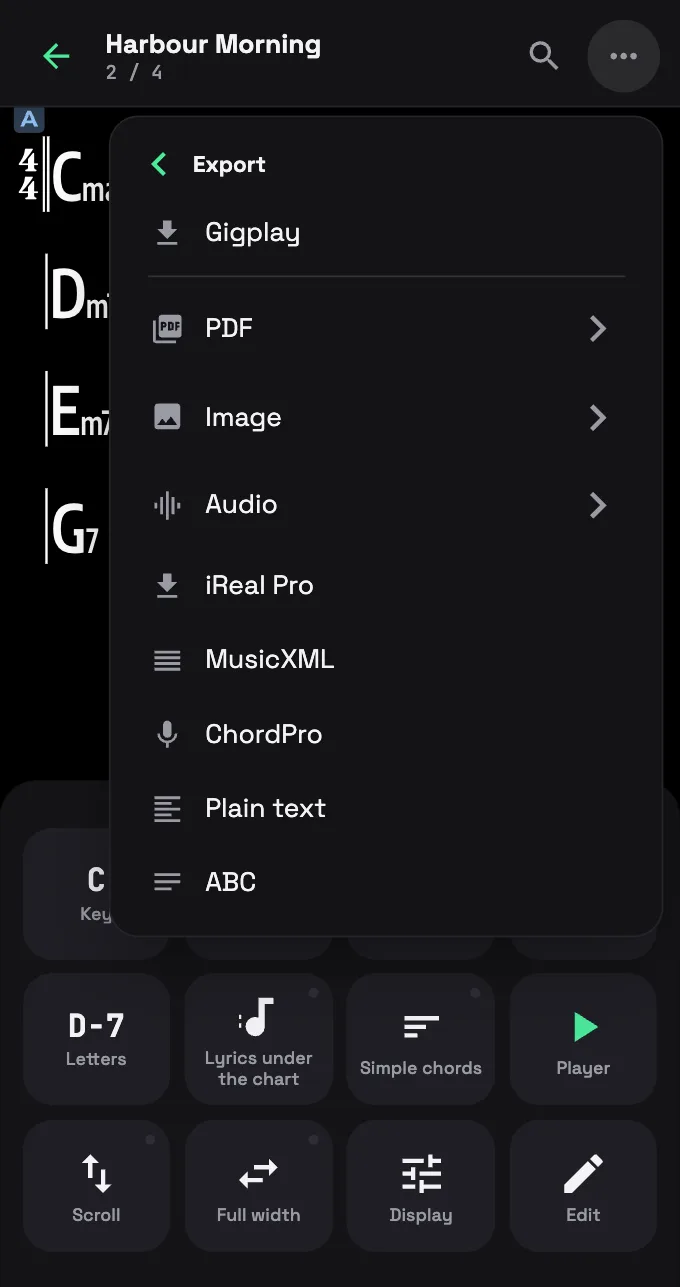
- Tap the ⋯ button (More), then Export. In a song list, the ⋯ beside a song has it too.
- Choose a format. The share sheet opens: send it in WhatsApp or another messaging app, or to a drive, or tap Save to device.
The song goes out as you see it: in the key you chose for it, with its melody and lyrics.
- Gigplay: a
.gigplayfile for another Gigplay. A second line sends the song's attached PDFs and photos too, if it has any (see Files). - PDF and Image: a page of the song, as Chords, Score or Lyrics.
- Audio: the band playing the song, as MP3, M4A or WAV; or MIDI.
- iReal Pro: the song in the iReal Pro format.
- MusicXML, ChordPro, Plain text, ABC: for other apps.
Exporting a playlist
In the playlist, tap the ⋯ button (Playlist options), then Export. A PDF of a playlist is a songbook: a cover, an index, a page for each song. Images, audio, MIDI and MusicXML come as a ZIP, a file for each song.
Share, in the same menu, sends the playlist as a link in the iReal Pro format.
A copy of your whole library
- On the home screen, tap Settings, then Library.
- Under Backup, tick what goes in it: Songs and playlists (ticked at first), Modes, Settings. If your songs have files attached, tick Song files to take them too.
- Tap Save backup to choose where it goes, or Share backup to send it to a drive or a chat.
The backup is one file, named with the day: keep it off the phone.
To bring a backup back, open it with Gigplay or use Import a file (see Bringing in your songs). For Songs and playlists you choose Add what’s new or Replace mine; for modes and settings, to keep yours or use the backup's. On a new phone, the backup's are chosen at first.
Every playlist to iReal Pro makes one file with all your playlists in the iReal Pro format, without melodies and lyrics.
Restore points
Before an import changes your library, and before you restore a point, keep only one version of a song or delete the whole library, Gigplay keeps your library as it was. The last 20 are in Settings, Library, under Restore points. Tap one, then Restore: your library goes back, and how it is now is kept first, so a restore can be undone too.
Gigplay also keeps a copy of your library in its own files. If it starts and finds its library gone (a phone short of room may clear an app's data), it brings it back from that copy and says so. Restore points and this copy stay on the device, and go when the app is deleted.
Versions of a song
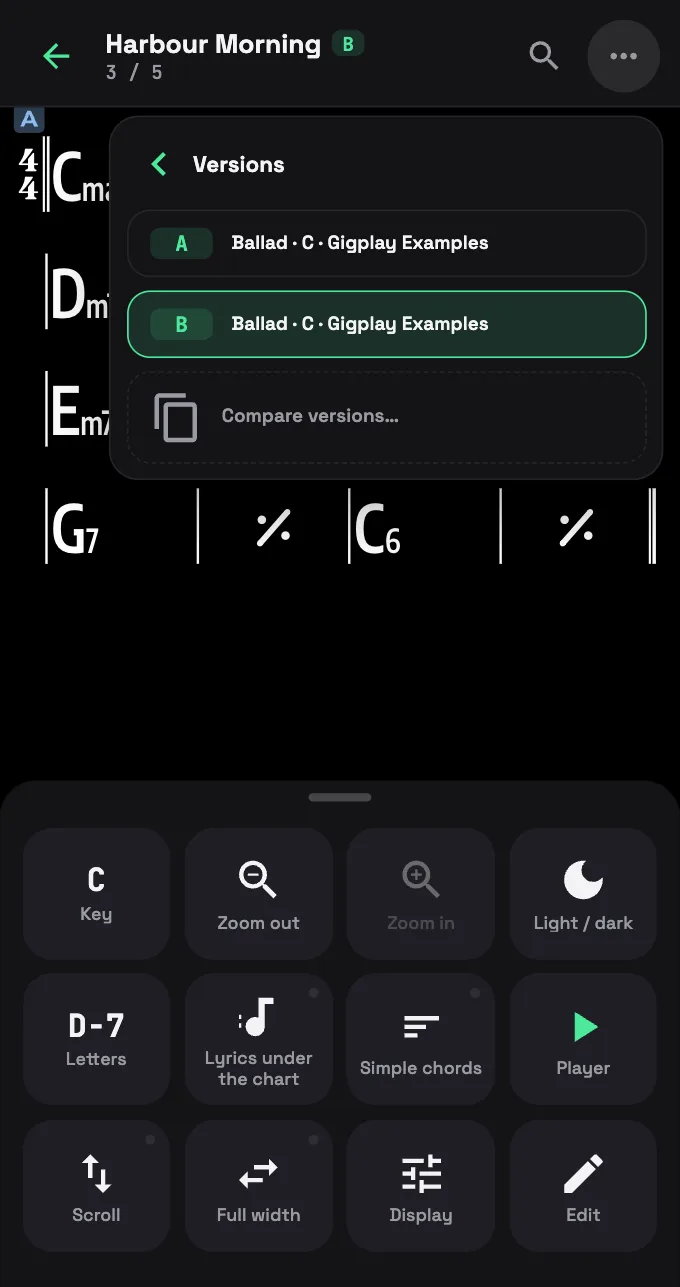
To try another arrangement and keep this one, tap Save as a new version in the song's ⋯ menu. The copy gets the next letter (B, C…), shown beside the title.
A song with several versions has Versions in its ⋯ menu: tap one to open it, or Compare versions… to see them side by side, give one a name, or Keep only this one.