Gigplay can show a song in several ways, which it calls modes. This page covers each mode, how to change mode, how to make the chart read well, and where your notes are.
The modes
- Chords: the chord chart.
- Chords+Melody: the chart with the melody on a small staff in each measure.
- Score: a lead sheet, the melody on a staff with the chords over it.
- Lyrics: the words, with their chords over them.
- Chords / Score and Chords / Lyrics: two modes side by side.
- Files: the PDFs and photos attached to the song (Files).
A mode shows what the song has. The example songs have no lyrics, so Lyrics offers Add lyrics instead (Melody and lyrics).
Changing mode
Swipe up or down on the song. Up goes from Chords to Chords+Melody, then Score, then Chords / Score, and back to Chords. Down goes the other way. Modes with nothing to show for the song are skipped.
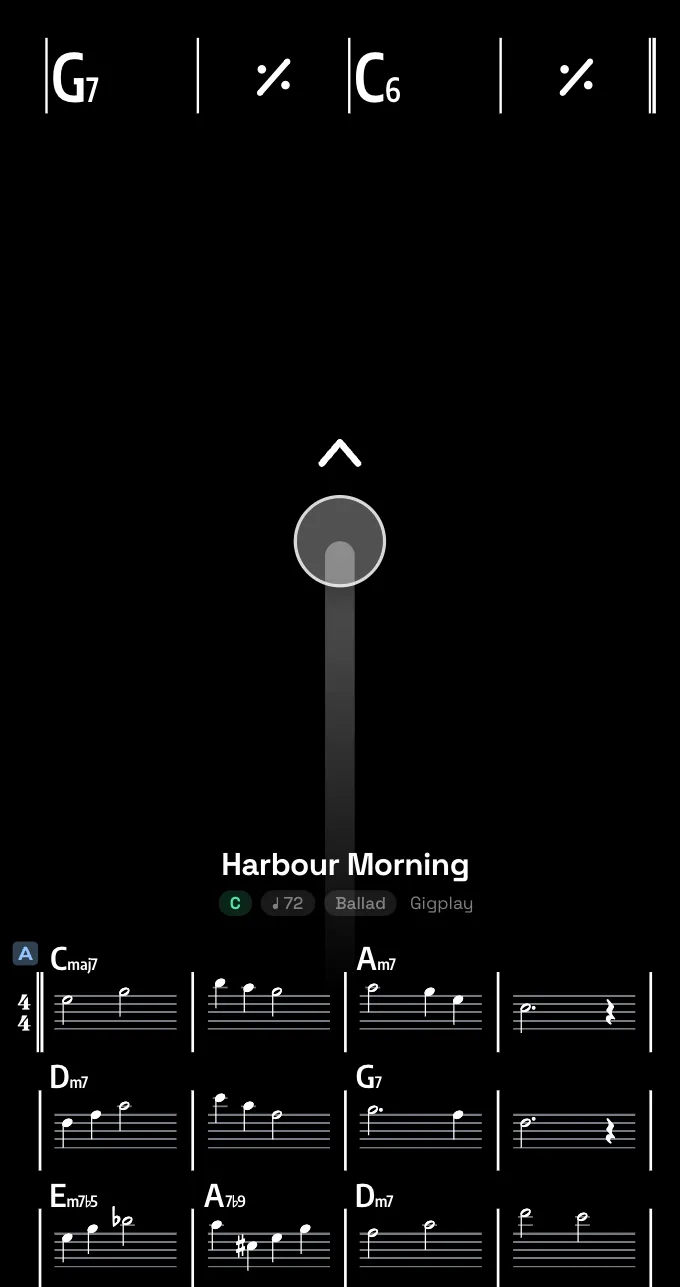
To go straight to any mode, open the song's menu, tap ⋯, then Mode. A page of every mode opens, with the current one lit. Tap another. Swiping does not reach the faded ones: open those from here.
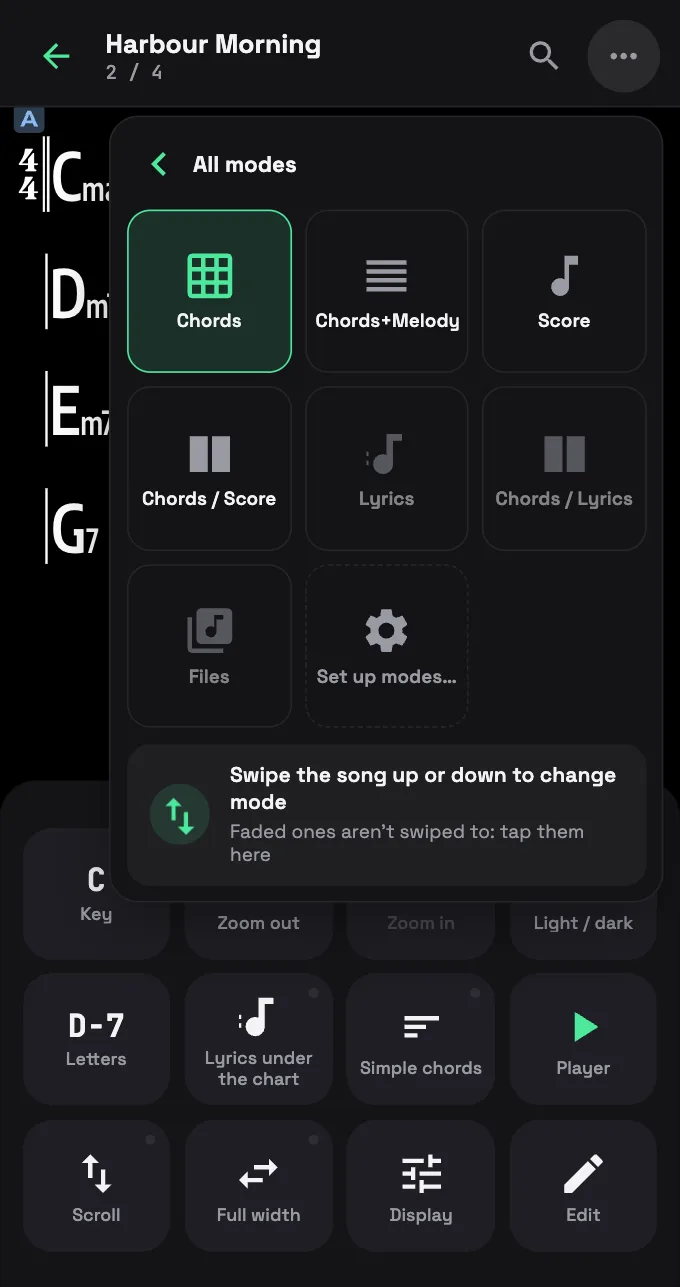
Size, scrolling and width
- Zoom out and Zoom in change the size one step at a time, or pinch with two fingers.
- Scroll lets a long song run past the bottom of the screen. Swipe up and down to scroll. At the end, keep pulling to go to the next mode.
- Full width spreads the chart across the whole screen. On a phone held upright, the chart already fills the width.
How the chords look
- Light / dark switches the page between light and dark.
- Simple chords shows each chord as the basic one of its family: C6 as C, A7♭9 as A7.
- Chords as opens a page: Letters (Dm7), Latin (Rem7), Jazz degrees (IIm7), Classical degrees (iim7) or Nashville numbers (2m7). Degrees and numbers count from the song's key.
- Lyrics under the chart puts each measure's words under its chords, for a song with lyrics.
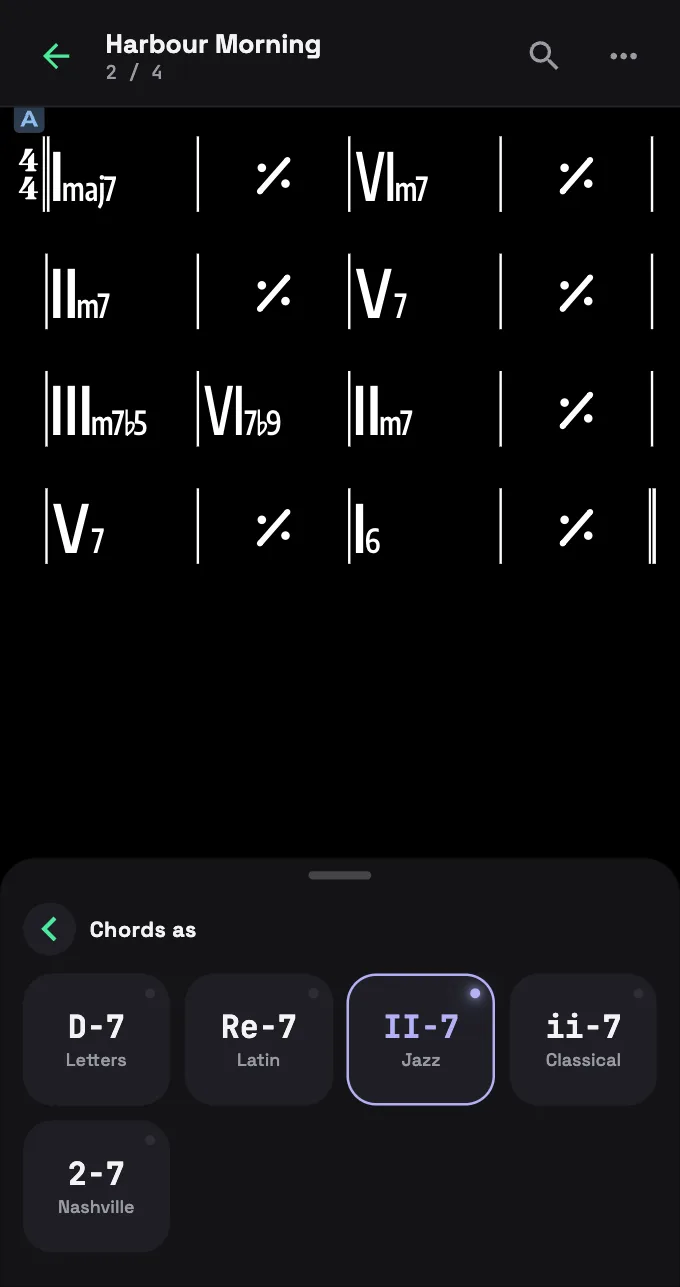
These settings belong to the mode. If you change them in Chords, every song shown in Chords follows, and Score keeps its own settings.
The Display page
The Display pad opens the rest:
- Texts: words written on the chart, such as "Solos".
- All verses: every verse under the chart, not only the first.
- Symbols: how repeats, endings, codas and other signs are drawn.
- Text font, Chord font and Colours: the chart's fonts and colours.
- Bass under: a slash chord's bass under the chord or beside it.
- Header: what the top of the song shows: title, key, tempo, style, composer, lyricist (after the composer, a slash between) and performer (in brackets; off at first).
- Quick bar: switches kept at hand at the bottom of the song.
- Set up mode…: all of the mode's settings (Settings).
A pad that would change nothing in this song is dimmed; tap it and the app says why. The round arrow at the top takes you back.
The song's details and your notes
In the song's menu, tap ⋯, then Song info: its composer, lyricist, performer, year, style, key, tempo, tags and your notes, those it has. Edit changes them (Editing charts).